Build your Stash
The magic of MustStash comes from the shared community database behind it.
When a product is already in MustStash, the hard work has already been done for you. Product images, details, categories, themes, occasions, and search tags have already been carefully curated.
That means you can build a searchable Stash with just a few clicks instead of manually entering and organizing everything yourself.
Not every crafting product is in the database yet, especially older or retired products, but the database continues to grow every day as new companies, products, and community contributions are added.
The following guide walks through our recommendation for the easiest and most effective way to begin building your Stash:
1. Start with one company and product type
The easiest way to begin is to grab a small stack of stamp or die sets from one of your favorite companies.
As you go, make two piles:
- products you added to your Stash
- products you could not find in MustStash yet
This keeps the process simple and helps you build momentum.
Some community members place small stickers on products after adding them to indicate that this product has been added to their Stash. It’s a fun way to keep track of what has already been added as your collection grows.
2. Search for a product by name
Open Discover and use search and filters to narrow the results:
For example:
- Company → Gina K Designs
- Product Type → Stamp Set
- Search → "spring things"
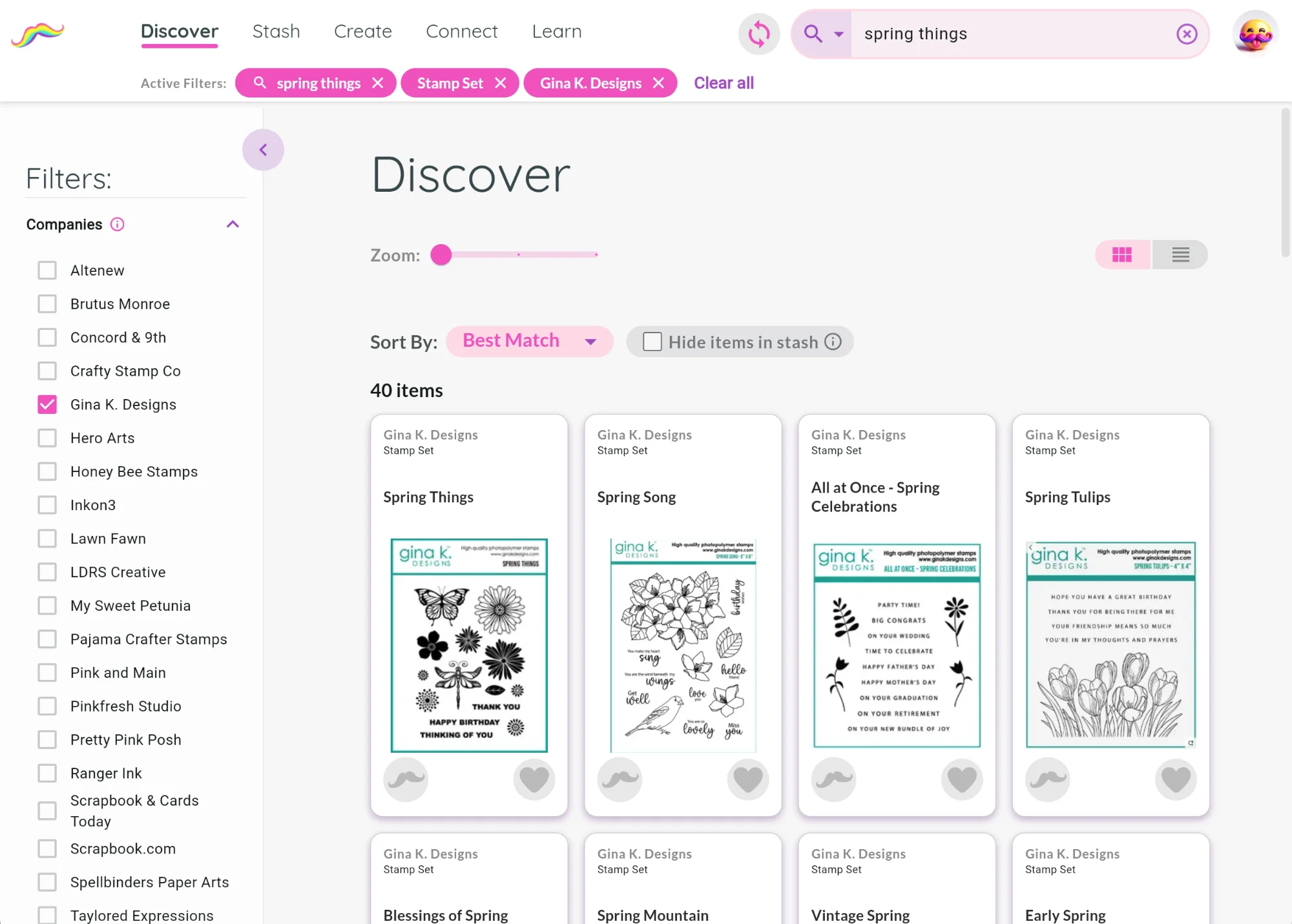
If you enter the full product name, the correct product will usually appear at or near the top of the results.
3. Add the product to your Stash
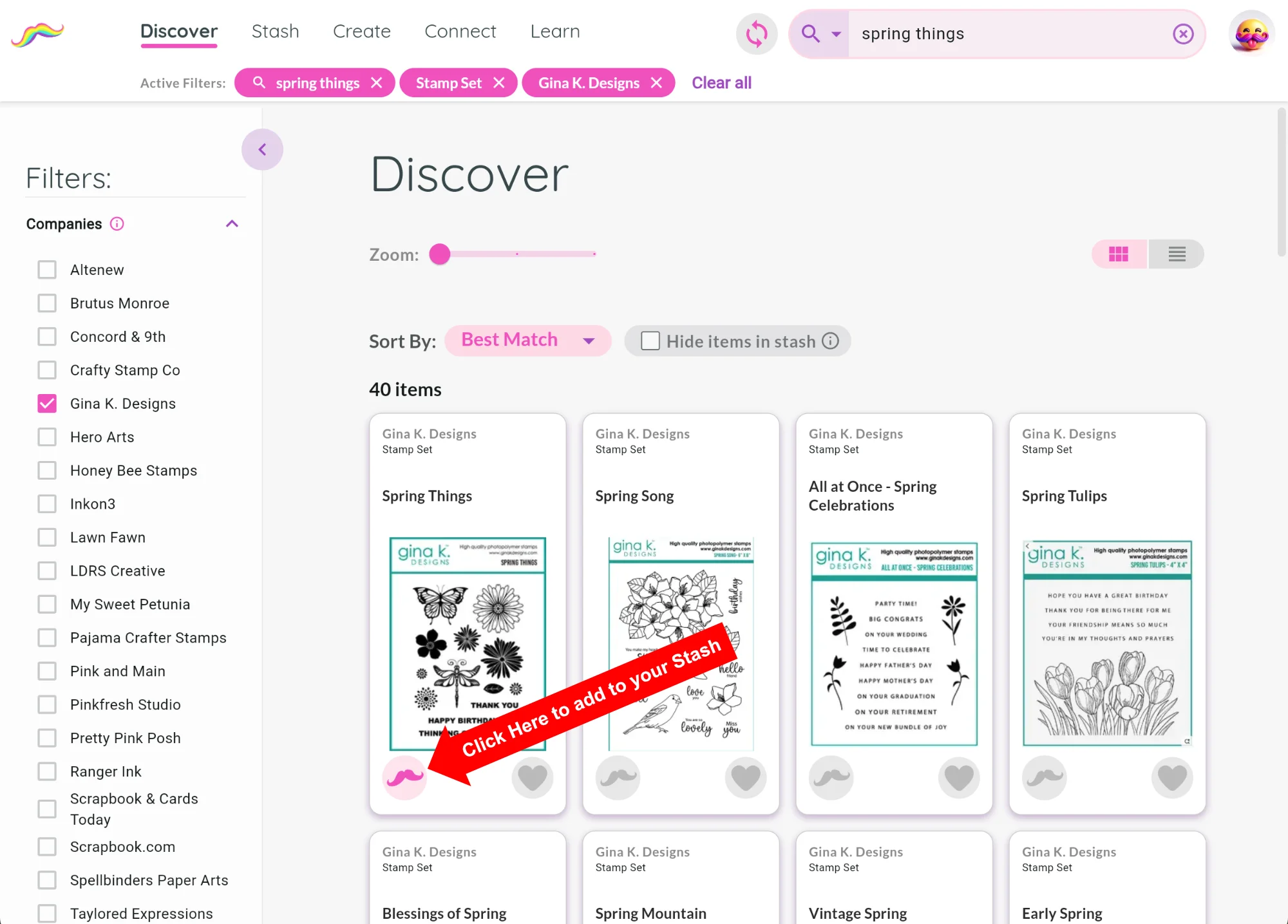
When you find the product you are looking for, click the mustache icon to add it to your Stash.
If you see a product that you like, but do not yet own, you can click the heart icon to add it to your Wishlist.
After you add the product, move the physical item to your "added" pile and continue with the next product.
4. Try Table View to explore your preferences
Many crafters prefer Table View when building their Stash because it makes it easier to quickly scan through large groups of products.
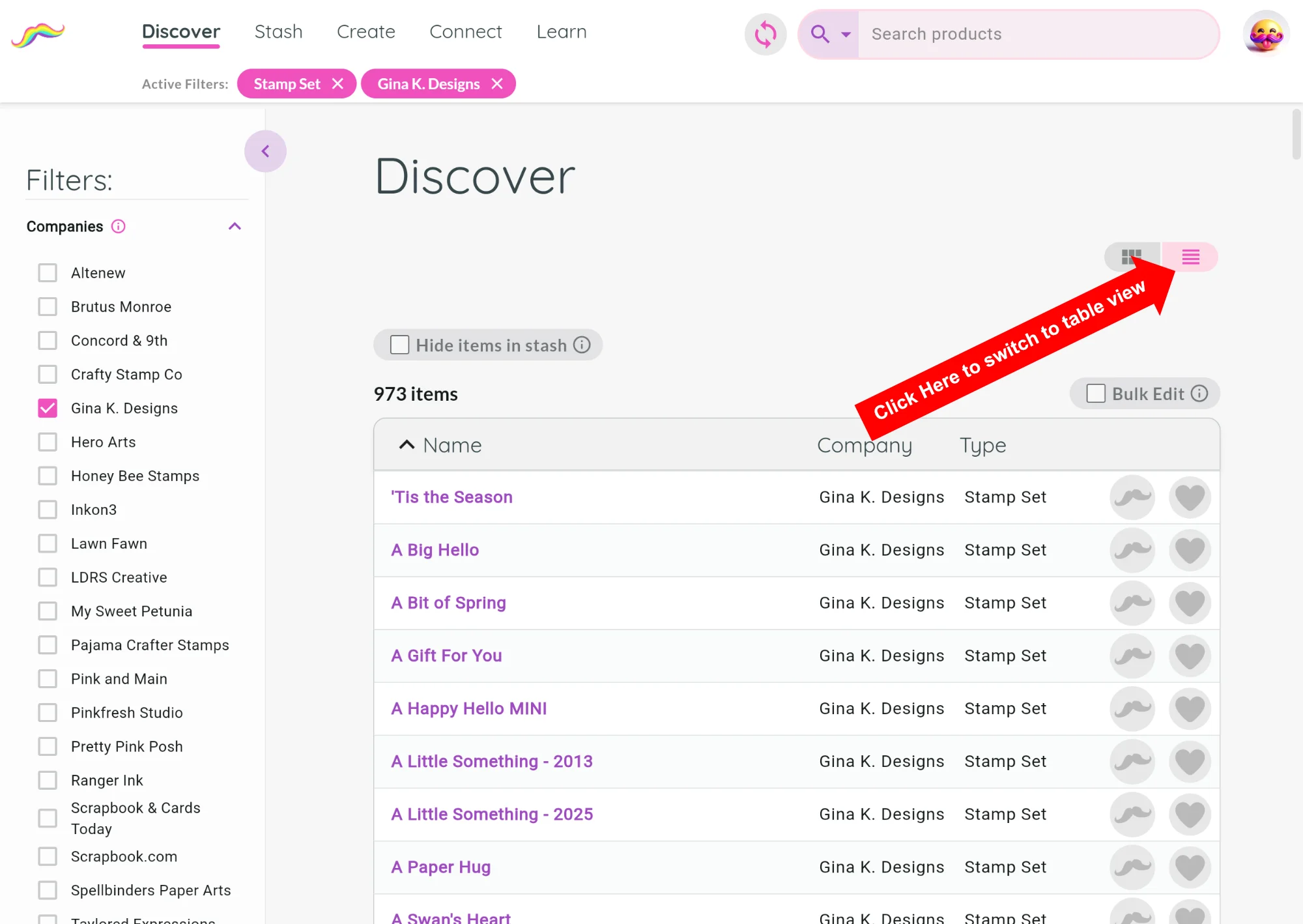
The advantage of Table View is that you do not need to type every product name individually.
Instead, clear the Search field and scroll through the alphabetical list while adding products to your Stash one-by-one.
You can switch between Grid View and Table View anytime to use whichever layout feels best for you.
5. Search your Stash
Since the products that are in MustStash include organized images, details, categories, and search tags, your Stash becomes incredibly useful and searchable right away.
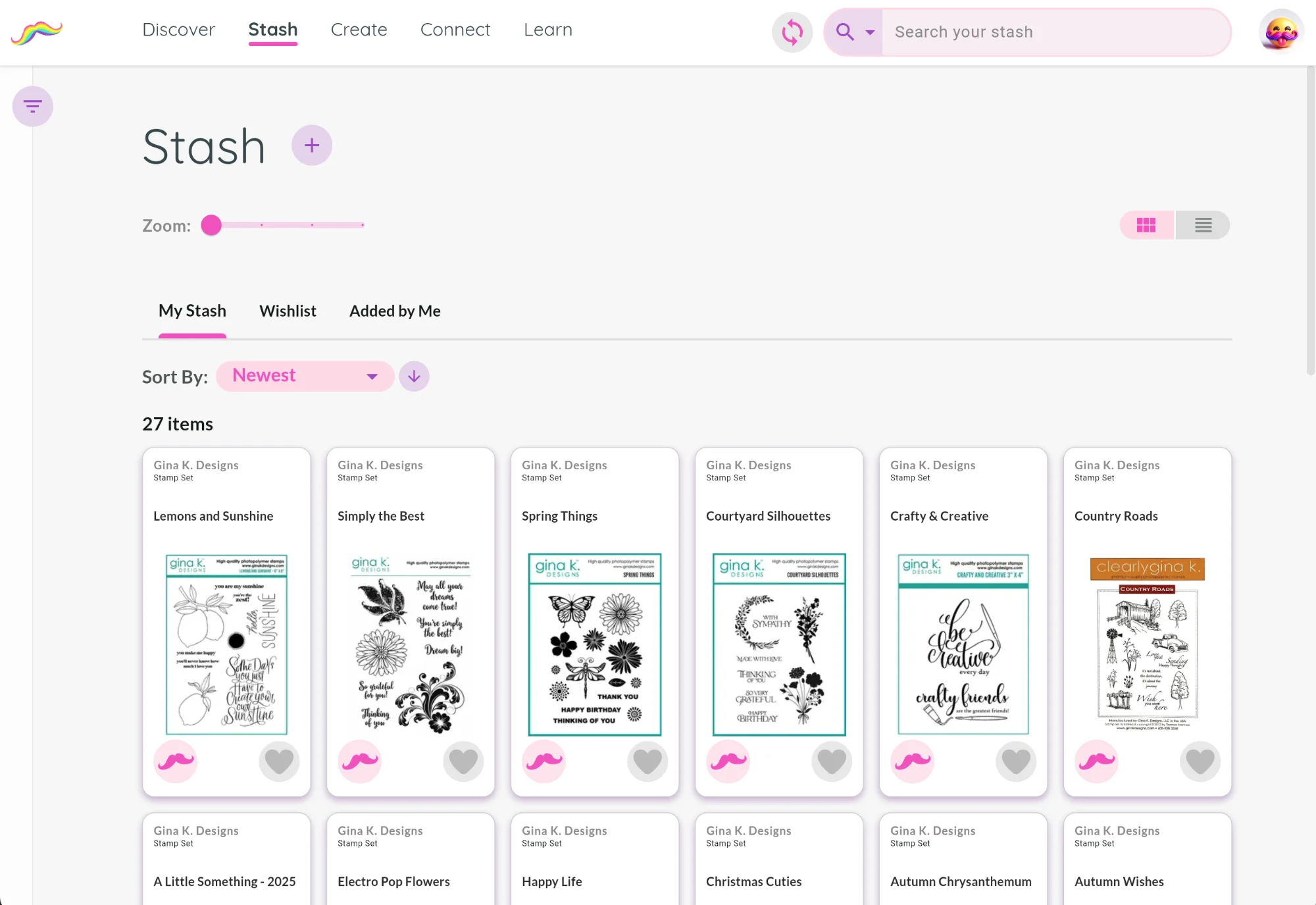
Try searching your Stash for something related to a product you just added.
For example, the “Spring Things” stamp set includes a butterfly. Searching for “butterfly” will return that product and possibly other related products in your Stash.
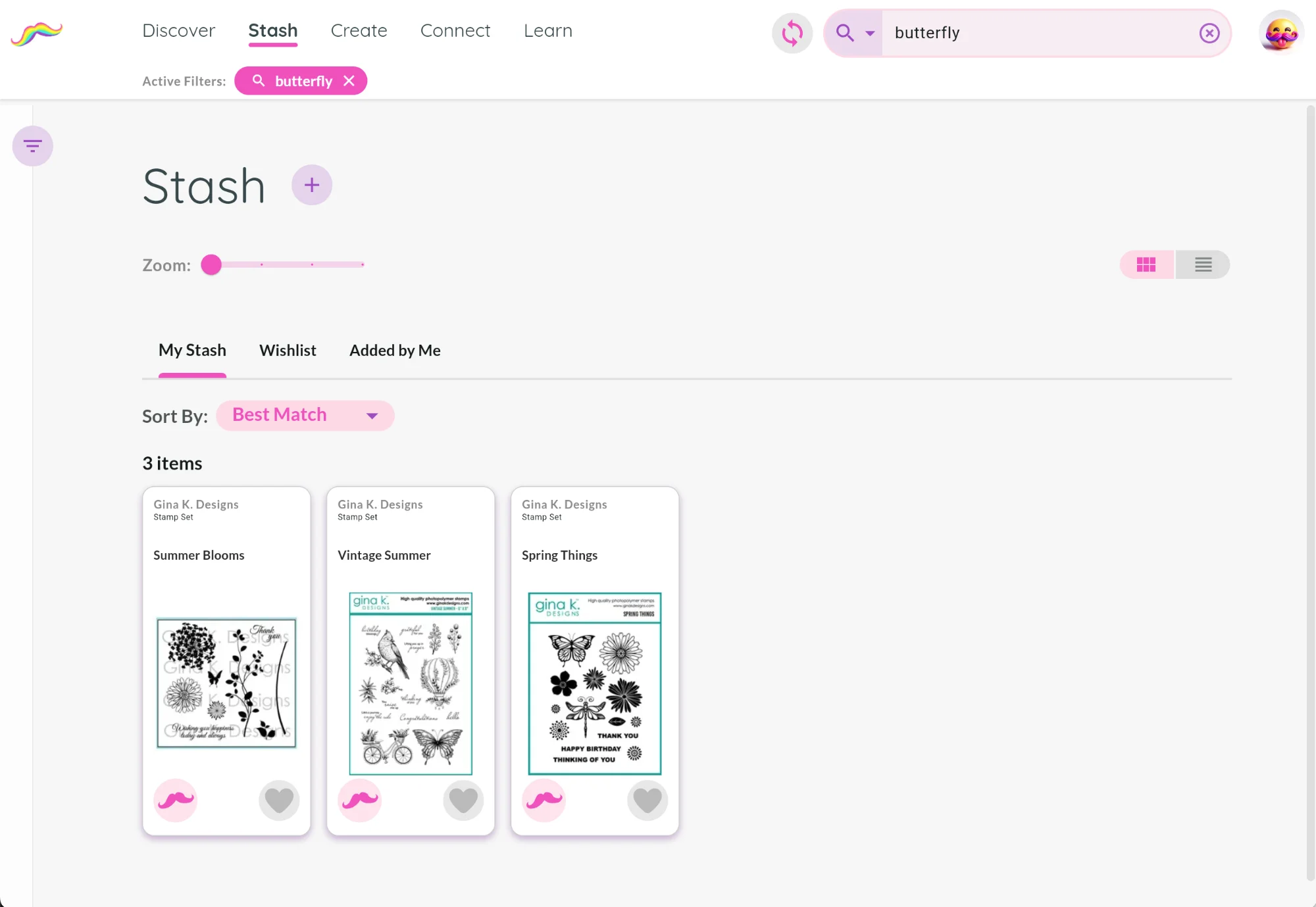
For many crafters, this is a lightbulb moment. Instead of spending hundreds of hours building manual systems or digging through boxes trying to remember where things are, your Stash suddenly becomes searchable in seconds.
Can't find a particular product?
Not every crafting product is in the community database yet; especially older, retired, or less common products.
If you cannot find a product:
- Set it aside for now.
- Keep adding the products you can find.
- Come back later and add the missing product yourself, or wait for another community member to add it.
Building your Stash does not have to happen all at once. Start with a small stack, add what you can, and come back anytime to continue growing your collection.