Manage your membership
The Membership page shows your current MustStash plan and billing status.
What you see on this page depends on whether you are using the Free plan or have an active Premium membership.
Free members
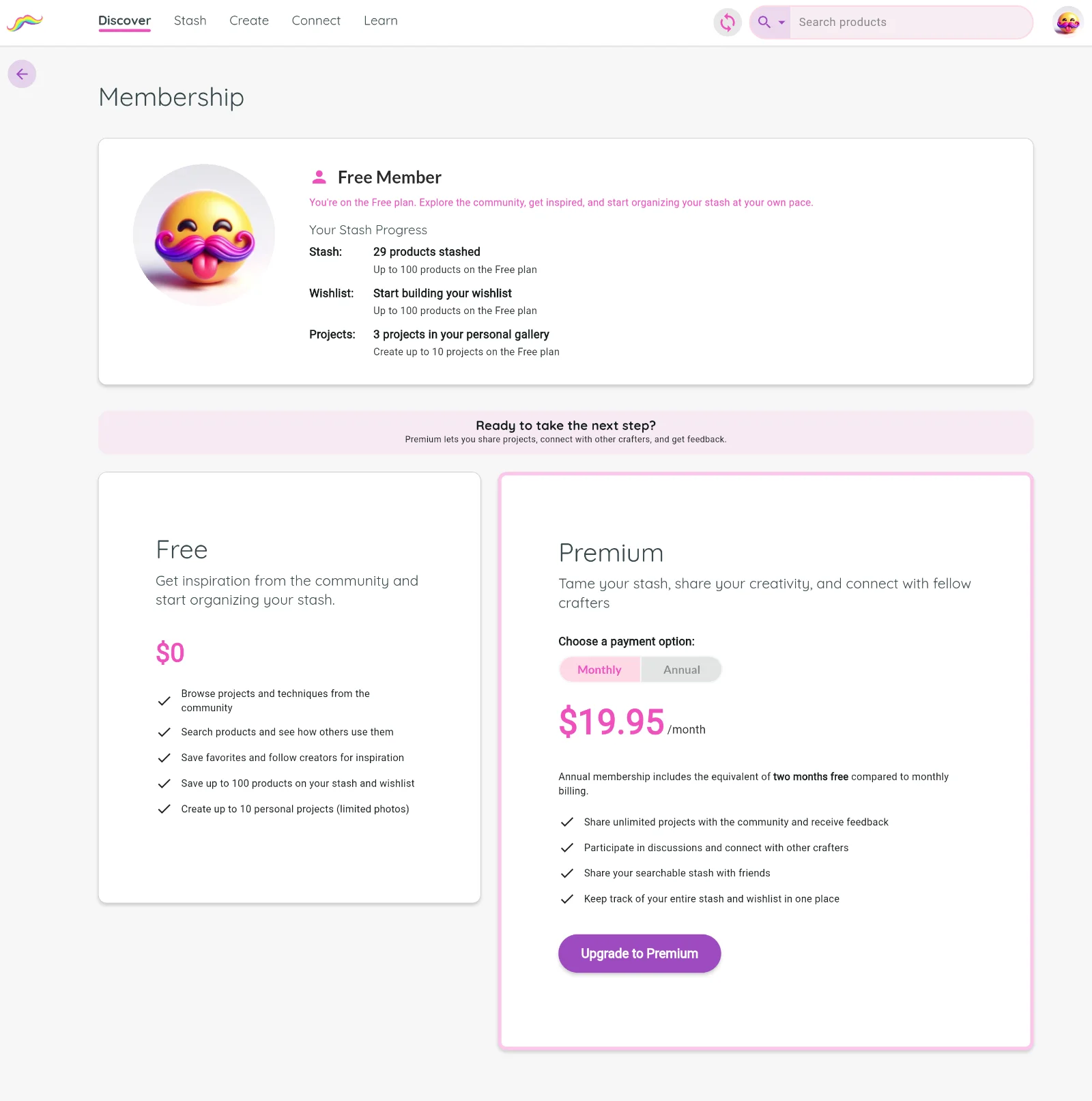
If you are on the Free plan, the Membership page shows what is included with Free and what is included with Premium.
To upgrade, choose Upgrade to Premium. You will be taken to Stripe checkout to choose a payment option and start your subscription.
MustStash uses Stripe for secure checkout and billing.
Premium members
If you are a Premium member, the Membership page shows that your membership is active, along with your next billing date.
You may also see recent membership activity, such as when your subscription started, renewed, or was cancelled.
To make changes, choose Manage billing.
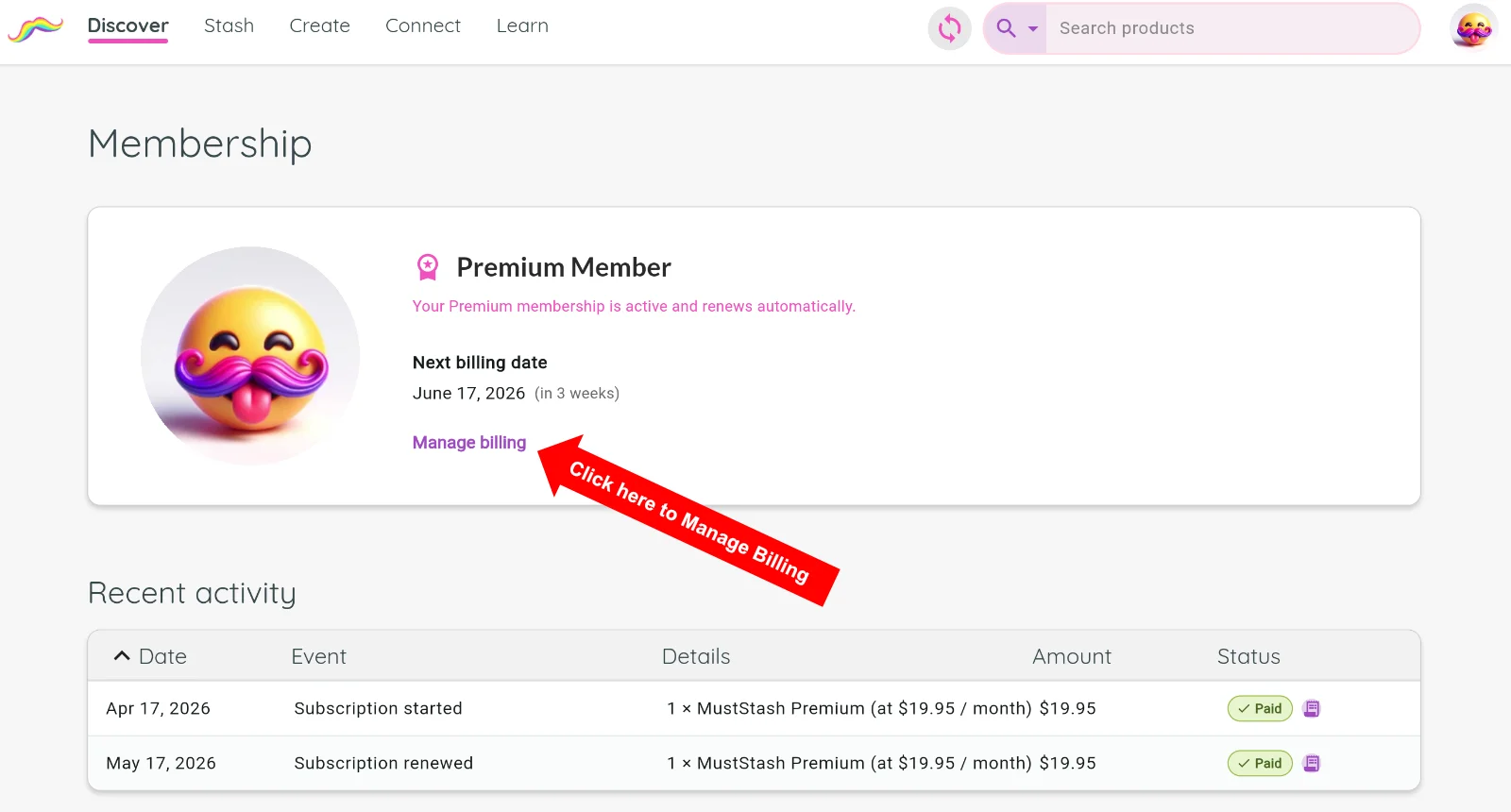
Manage billing
The Manage billing link opens Stripe’s secure billing portal.
From there, you can manage billing details such as:
- updating your subscription
- adding or changing a payment method
- updating billing information
- viewing invoice history
- downloading invoices or receipts
- canceling your subscription
View invoices and receipts

Your recent membership activity may appear on the Membership page in MustStash.
If an invoice is available, you can select the invoice icon next to the payment row to open the invoice in Stripe. From there, you can view the payment details and download the invoice or receipt.
Cancel your subscription
To cancel, open Membership, choose Manage billing, then choose Cancel subscription in Stripe.
Stripe will ask you to confirm the cancellation. If you cancel, your Premium membership remains available until the end of your current billing period.
Need help?
If your membership does not look right, or if you have trouble upgrading, managing billing, viewing invoices, or canceling your subscription, contact support.