Publish and Share a Recipe
Have you ever wanted to share a creation you made with a friend, a crafting group, or people on social media?
With Public Recipes, MustStash can turn any creation into its own page on the internet.
Think of it like a recipe for your card. Instead of showing someone only the finished photo, you can also share the products you used, your instructions, techniques, occasions, and the other details you already added to your MustStash project.
Every Public Recipe gets its own web address.
You can copy that link and send it anywhere you like:
- in a text message
- in an email
- in a Facebook post or group
- on Pinterest
- through social media
- or anywhere else you normally share your creations
When someone clicks the link, your recipe simply opens in their browser. They do not need a MustStash account to see it.
And you are always in control of what you share. Nothing in MustStash becomes public automatically. You choose exactly which projects you want to publish.
Imagine you want to show one of your creations in a Facebook group. Normally, you might need to upload a photo, write another description, list some of the products you used, and explain how you made it, even though you already entered all of that information in MustStash.
With a Public Recipe, you can simply paste the recipe link into your post. On sites such as Facebook that create a preview when you share a link, your recipe photo and information can appear automatically.
Anyone who wants to learn more can click the link and see the complete recipe.
You did the work once in MustStash. Now you can share it again and again.
Publish one creation
1. Choose the project you want to share
Open Create, then open the project you would like to publish.
From the Actions menu, choose Share.
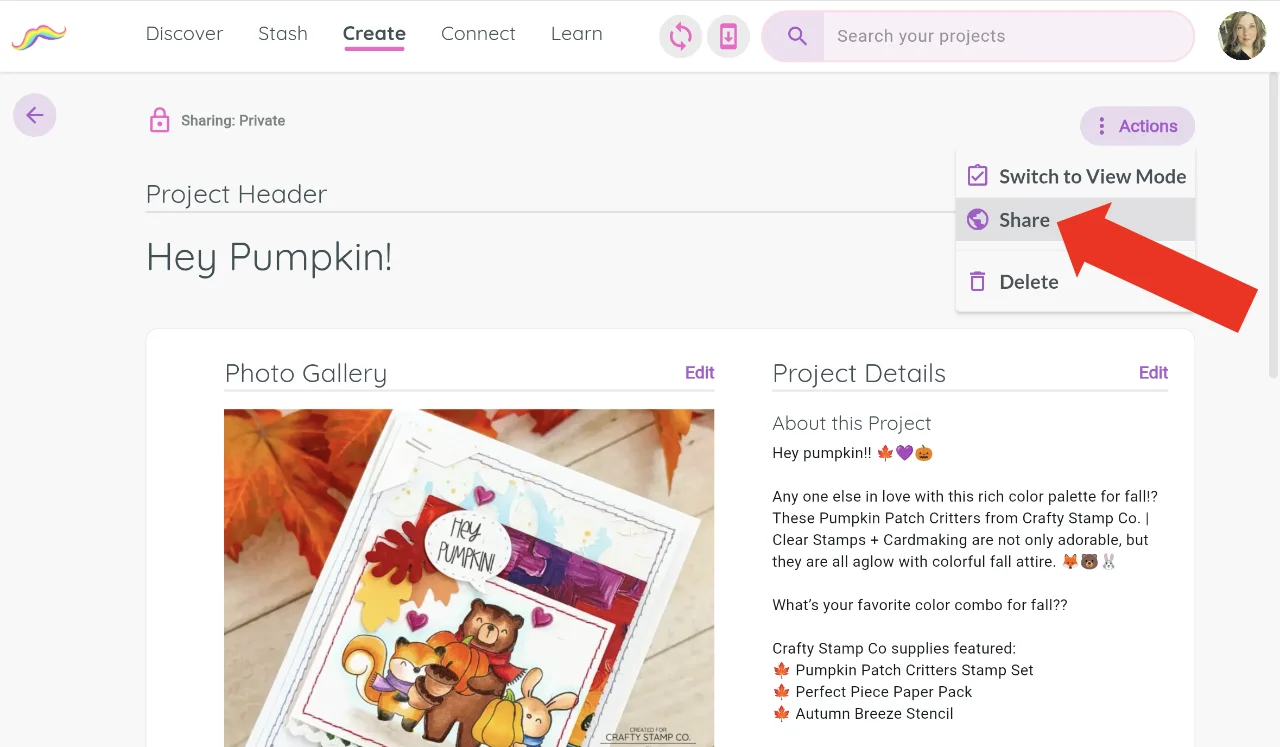
If you have already shared the creation with the MustStash community, you will see Manage Sharing instead.
Sharing creations is available to Premium members.
Your creation also needs at least one photo before it can be published. If you have not added one yet, MustStash will help you do that first.
2. Choose who can see your creation
MustStash gives you three ways to keep or share a creation:
- Private keeps the project just for you.
- MustStash Community allows other MustStash members to find it on the Create → Inspiration tab.
- Public Recipe shares it with the MustStash community and also creates a recipe page that anyone can view on the internet.
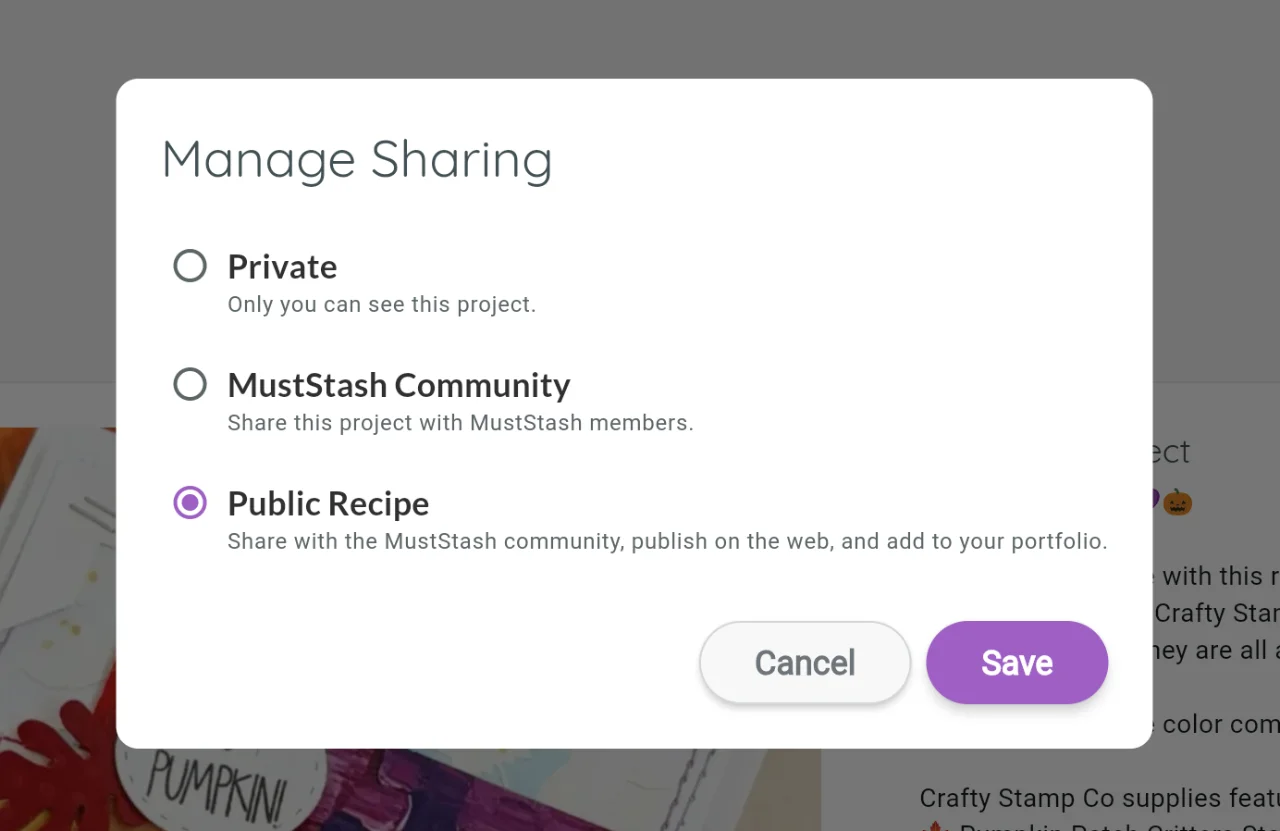
Choose Public Recipe.
Your public recipe uses the information you have already added to your project, such as your photos, description, products used, techniques, occasions, and instructions.
That is what makes a recipe different from simply sharing a finished photo. Someone can see what you made, but they can also learn from it and discover the products and techniques you used.
3. Choose your MustStash Name
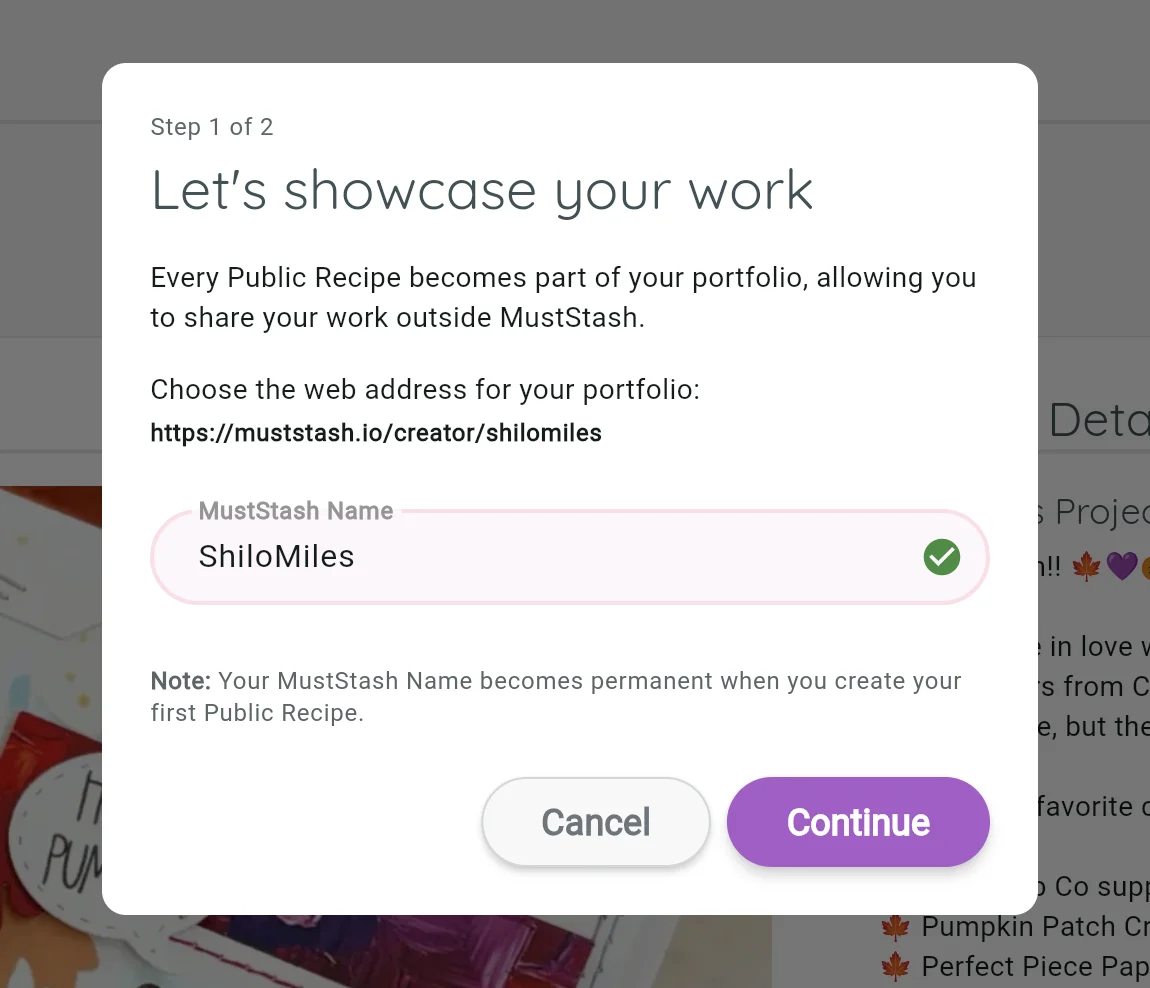
The first time you publish a Public Recipe, MustStash will ask you to choose your MustStash Name.
Your MustStash Name is the name that identifies you on your Public Recipes and on your personal MustStash portfolio.
It also becomes part of your portfolio's web address:
https://muststash.io/creator/your-muststash-name
That is why MustStash Names follow a few simple rules. They have to work as a link that people can open in a browser.
Naming rules
A MustStash Name can use:
- letters (A–Z and a–z)
- numbers
- hyphens (
-) - underscores (
_)
It cannot include spaces or other punctuation (such as periods, commas, or apostrophes). Web addresses do not allow those characters, so MustStash Names cannot either.
Your name must also be between 3 and 30 characters long.
If you want more than one word, put them together or separate them with a hyphen or underscore. For example:
| What you might want | A MustStash Name that works |
|---|---|
| Shilo Miles | ShiloMiles or shilo-miles |
| Crafty Jane | CraftyJane or crafty_jane |
| CardMaker2024 | CardMaker2024 |
Capital letters are fine. MustStash keeps the capitalization you type for how your name appears, but the web address always uses lowercase. So ShiloMiles and shilomiles lead to the same portfolio:
https://muststash.io/creator/shilomiles
Choose something that feels like you.
It might be:
- your own name (without spaces)
- your crafting name
- a name you already use on social media
- another name you would like other crafters to know you by
MustStash will let you know if the name you want is available, and will show an error if the name breaks any of the rules above.
Choose your MustStash Name carefully.
Once you publish your first Public Recipe, your MustStash Name is permanent and cannot be changed later.
When you are happy with your name, choose Continue.
4. Decide whether to show your real name
Next, MustStash will ask whether you would also like your real name to appear with your MustStash Name.
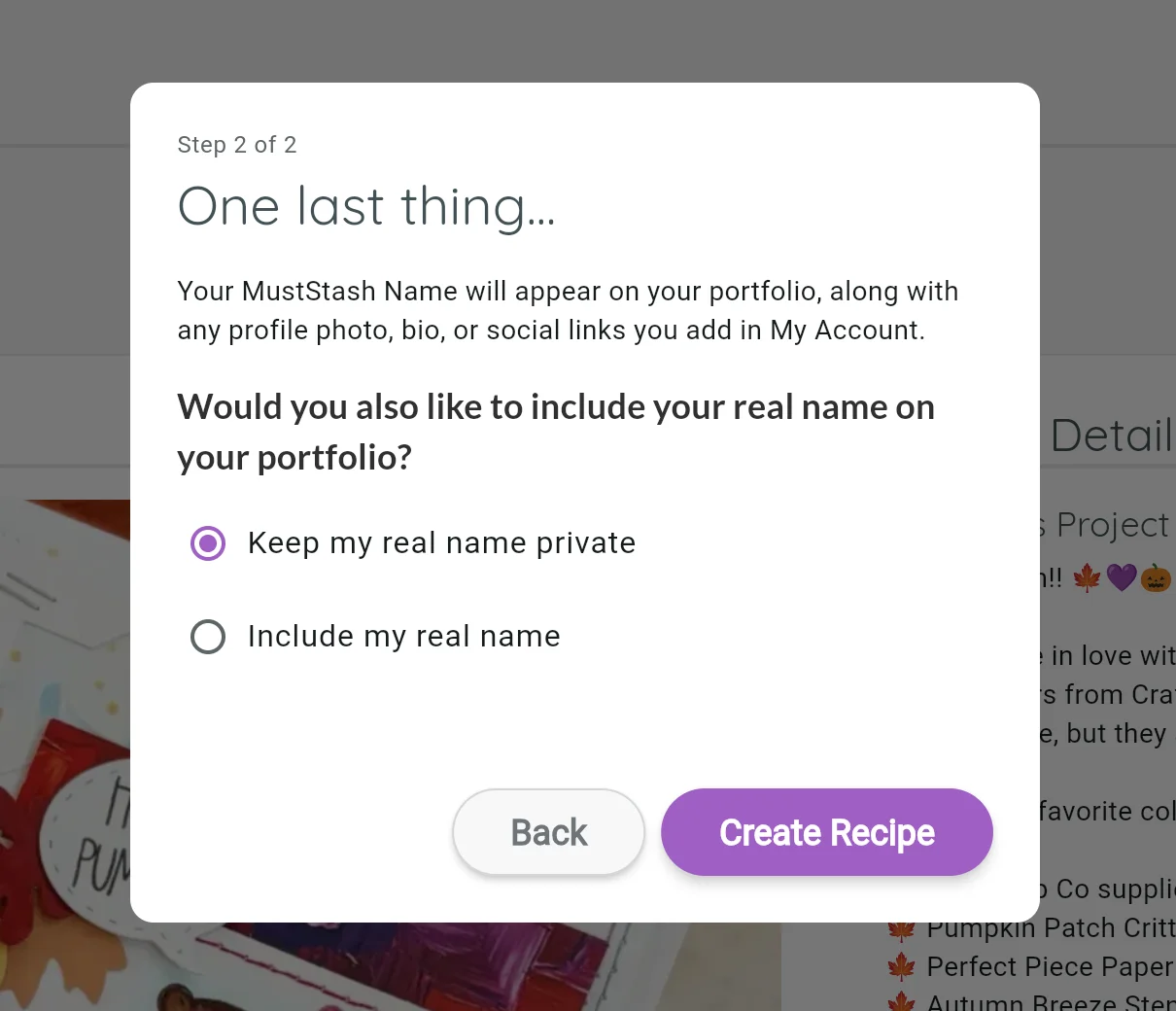
You can choose:
- Keep my real name private
- Include my real name
Unlike your MustStash Name, you can change this choice later from My Account.
Choose Create Recipe when you are ready.
That's it!
Your project now has its own Public Recipe on the internet.
Copy and share your recipe link
Once your creation is a Public Recipe, MustStash gives you two ways to copy its web address.
Both copy the same recipe link. Use whichever way is easiest for you.
1. Choose Share Recipe
Open the project's Actions menu and choose Share Recipe.
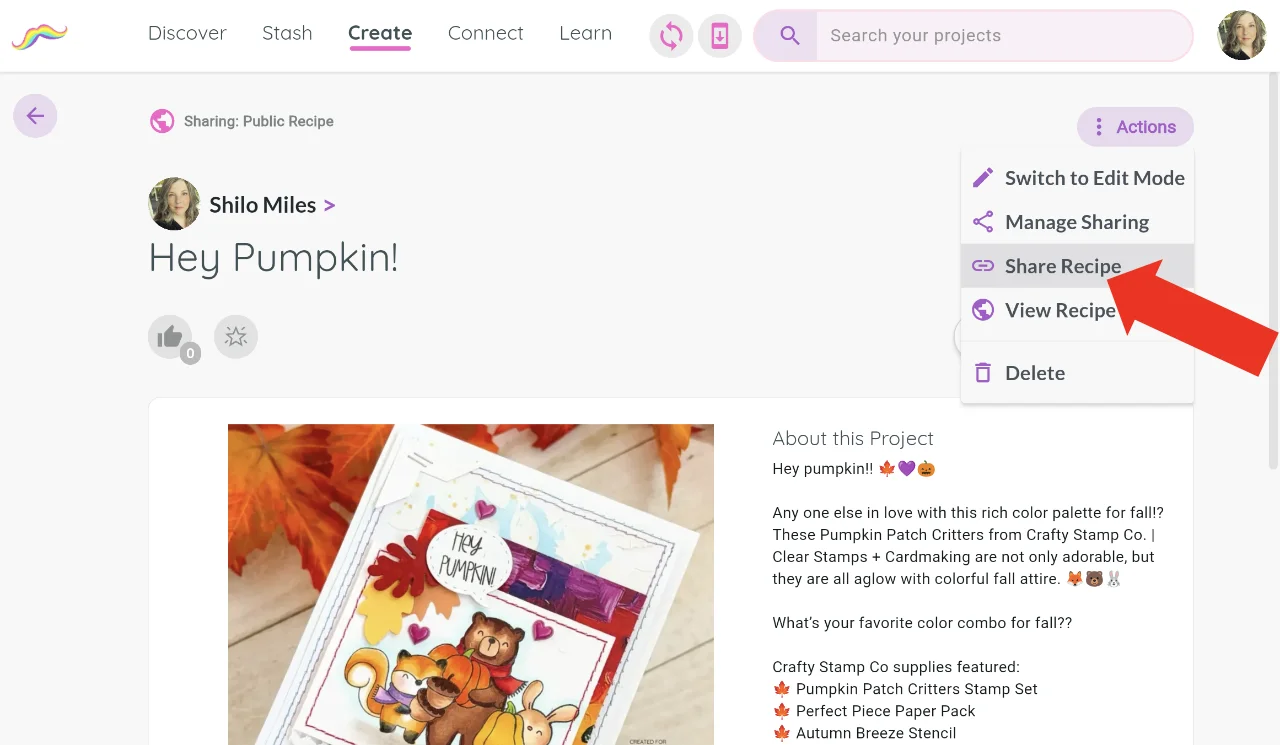
MustStash will show you the web address for your Public Recipe and explain how you can use it.
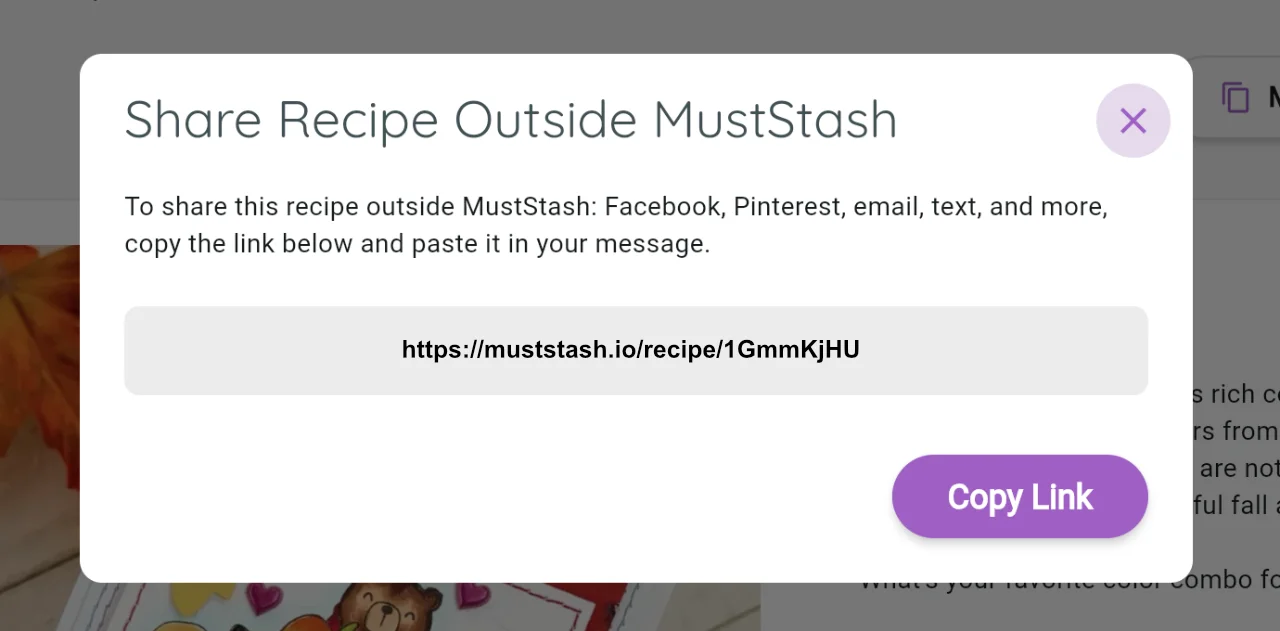
Choose Copy Link.
The recipe link is now copied to your clipboard and ready for you to paste wherever you would like to share it.
If MustStash says something was copied to your clipboard, that simply means it is ready for you to paste somewhere else.
Nothing has been posted or sent yet. Go to the Facebook post, email, text message, or other place where you want to share your recipe and choose Paste.
2. Use the quick shortcut
Once your creation is a Public Recipe, you will also see Sharing: Public Recipe near the top of the project.
The purple Public Recipe icon next to it is a shortcut for copying your recipe link.
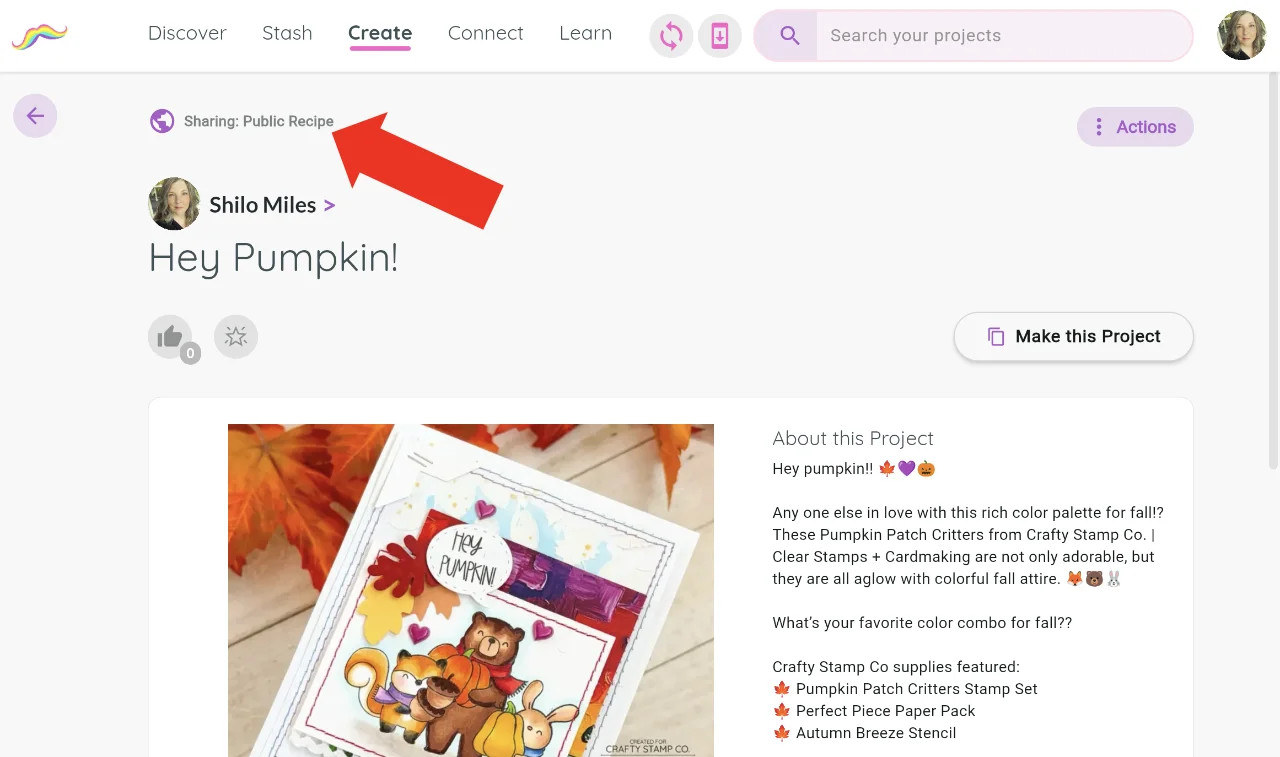
Click the purple icon and MustStash will immediately copy the recipe link to your clipboard.
A message will appear to let you know the link was copied and is ready to paste.
This is handy when you already know what you want to do and just need the link quickly.
MustStash does not post to Facebook, Pinterest, or other websites for you.
Instead, you decide where you want to share your recipe and simply copy and paste its link.
Want to see what other people will see?
Open the project's Actions menu and choose View Recipe.
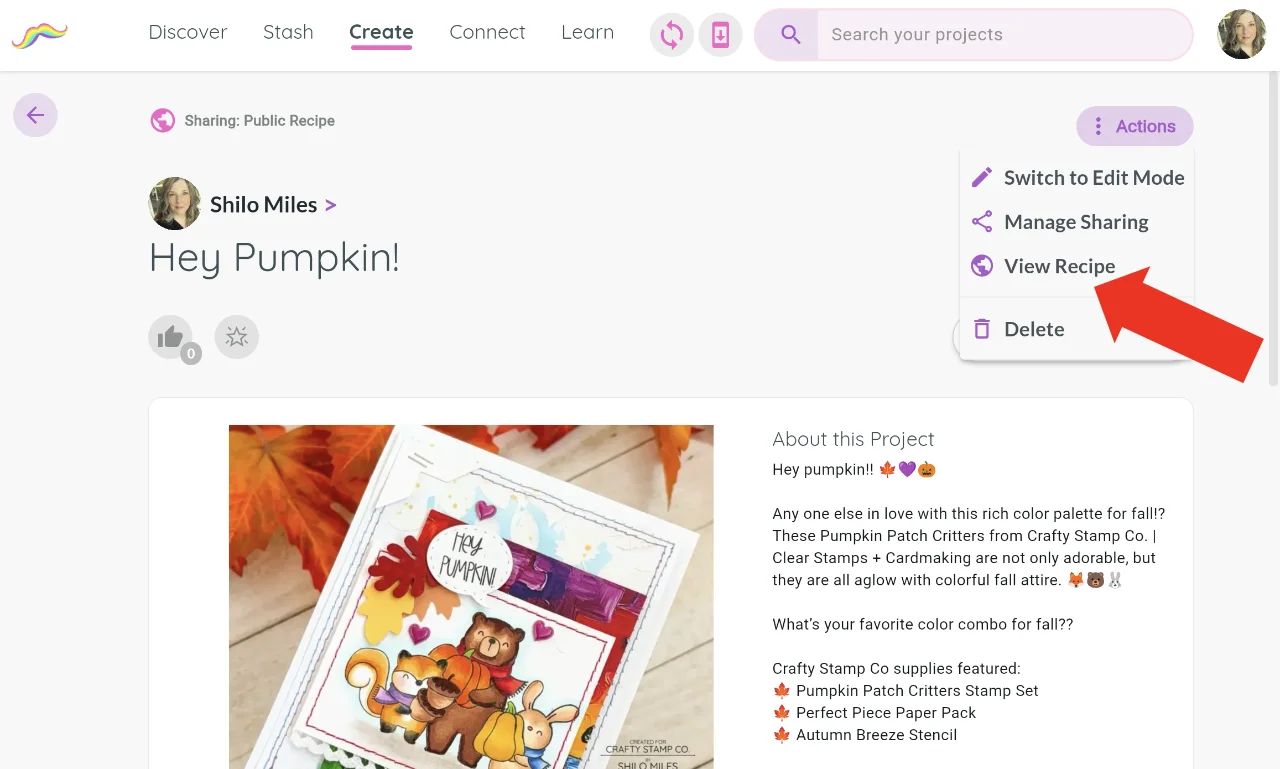
This opens the Public Recipe in your browser so you can see the same page other people will see when they open your link.
Change this recipe later
If you make changes to your project later—such as editing instructions, fixing a typo, or updating photos and products used—those updates appear on your Public Recipe automatically. You do not need to unpublish and share it again.
Publishing a recipe does not mean it has to stay public forever.
Open the project and choose Actions → Manage Sharing.
You can change it to:
- MustStash Community if you still want other MustStash members to discover it, but you no longer want it available to everyone on the internet.
- Private if you want the project to be visible only to you.
When you remove a Public Recipe from the internet, its old recipe link will stop working, and the project will no longer appear on your portfolio.
If you decide to publish that project again someday, MustStash will create a new recipe link for it.
Your portfolio, and sharing more than one
Publishing your first Public Recipe also creates a personal webpage of your public work. We call this your MustStash portfolio. MustStash keeps it updated for you as you publish more recipes, and anyone viewing your recipes can click your name to see your full portfolio.
Learn more in Your MustStash portfolio.
You do not need to publish everything you have ever created. Pick one project you are proud of and give it a try.
If you already have several creations and want to update them together, see Share multiple creations at once.