Share Multiple Creations at Once
If you already have several creations, you do not need to open each one to change who can see it.
From My Creations, you can select as many as you like and apply the same sharing setting to all of them at once.
This is especially helpful if you have been using MustStash for a while and want to publish many of your creations as Public Recipes.
To learn what a Public Recipe is, or to publish just one creation, see Publish and share a recipe.
Sharing creations is available to Premium members.
How to update several at once
1. Open My Creations
Go to Create, then choose the My Creations tab.
2. Choose Manage Sharing
From the Actions menu, choose Manage Sharing.
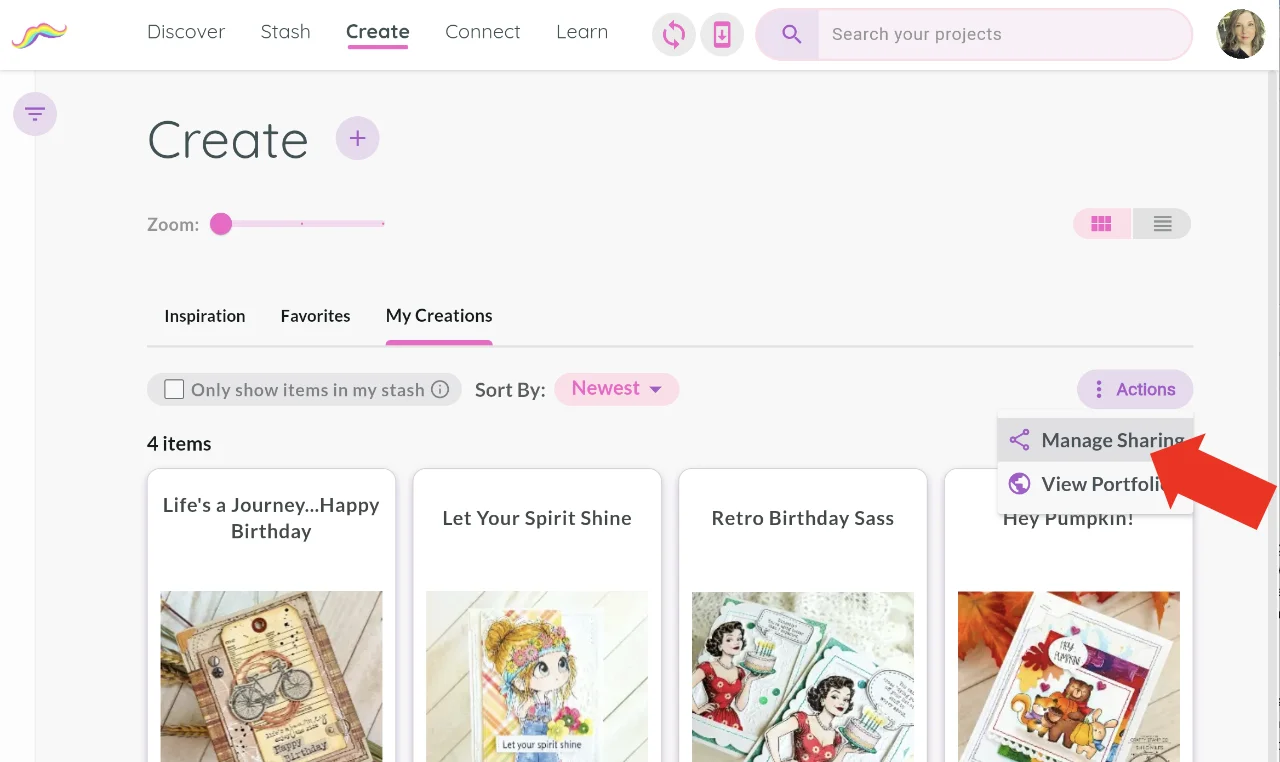
This puts My Creations into a selection mode. A toolbar appears asking you to select the creations you want to update.
3. Select the creations to update
Tap or click each creation to check it.
You can also choose Select All or Deselect All.
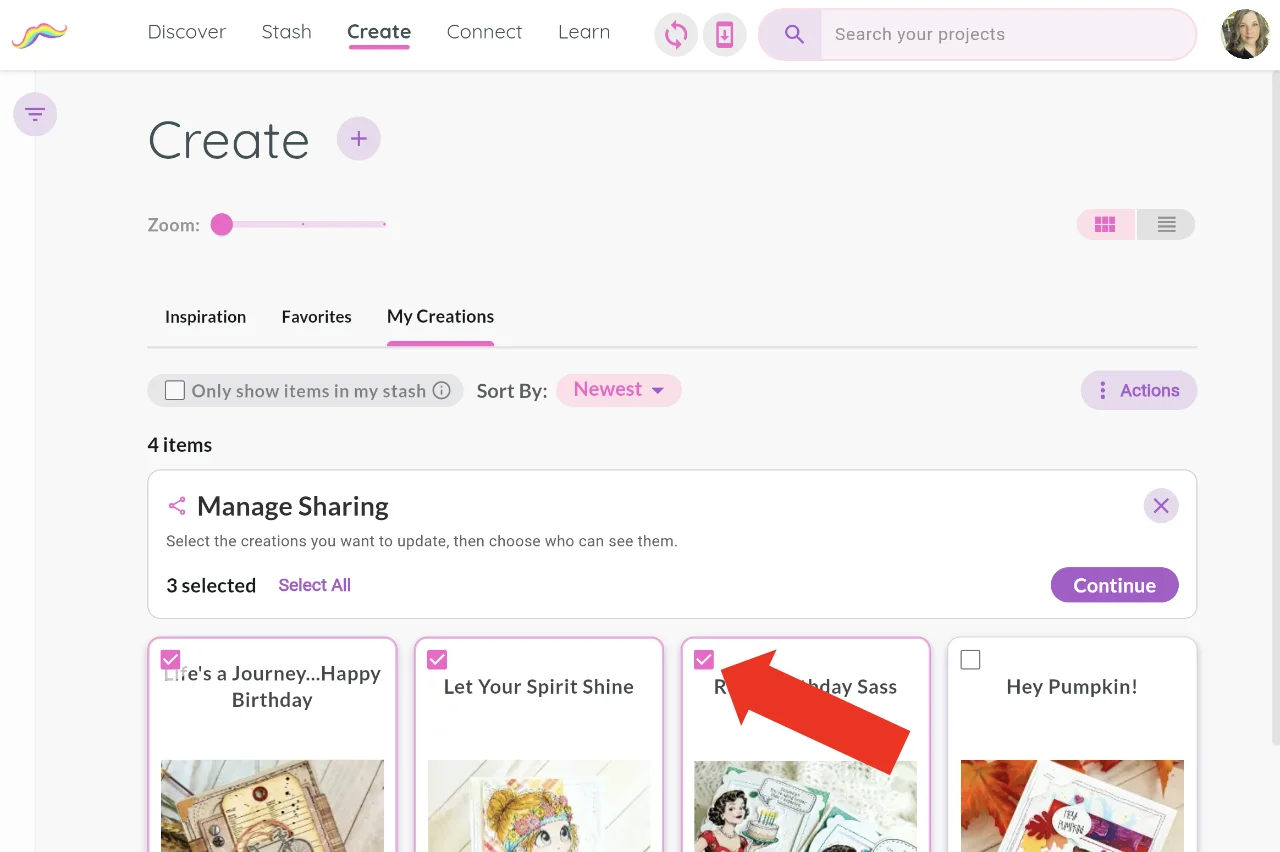
Select All includes every creation that matches your current search and filters, even if you have not scrolled far enough to see them all.
You can keep using search and filters while you are selecting. When you continue, MustStash only updates the selected creations that are still visible.
4. Choose Continue
When you have selected the creations you want to update, choose Continue.
5. Choose who can see them
MustStash will ask you to pick one sharing state for the whole selection:
- Private keeps them just for you.
- MustStash Community lets other MustStash members find them in Inspiration.
- Public Recipe shares them with the MustStash community and also publishes each one as a recipe page on the internet.
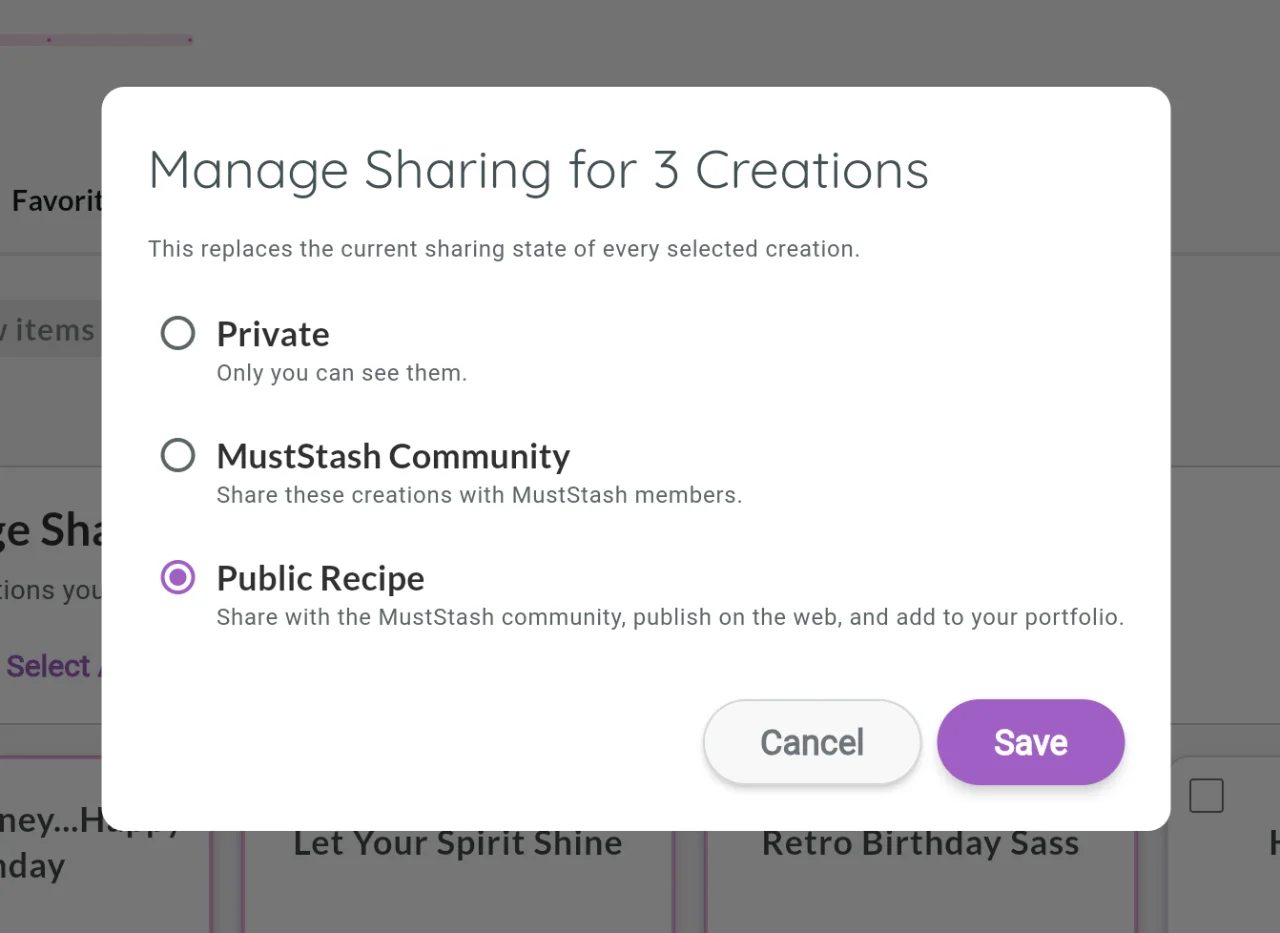
The dialog explains that this replaces the current sharing state of every selected creation.
That means every selected creation will use the option you choose, even if some of them were already set differently.
If you choose MustStash Community or Private, any selected Public Recipes are removed from the internet and from your portfolio. Their old recipe links will stop working. If you publish one of those projects again later, it will get a new link.
When you have made your choice, choose Save to update all selected creations.
For a fuller explanation of the three options, see Publish and share a recipe.
If some creations do not have a photo yet
Creations need at least one photo before they can be shared with the MustStash community or published as Public Recipes.
If even one of the creations you selected has no photo, MustStash will not change any of them. Add a photo to each, or deselect the ones without photos, and try again.
If this is your first time publishing any Public Recipes
If you have never published a Public Recipe before, MustStash will first ask you to choose your MustStash Name and whether to show your real name.
That only happens once. After that, bulk publishing uses the name you already chose.
See Publish and share a recipe for how to choose that name.